Change one part. Leave the rest alone.
Select a region, describe the change, and GPT Image 2.5 rewrites only that part.
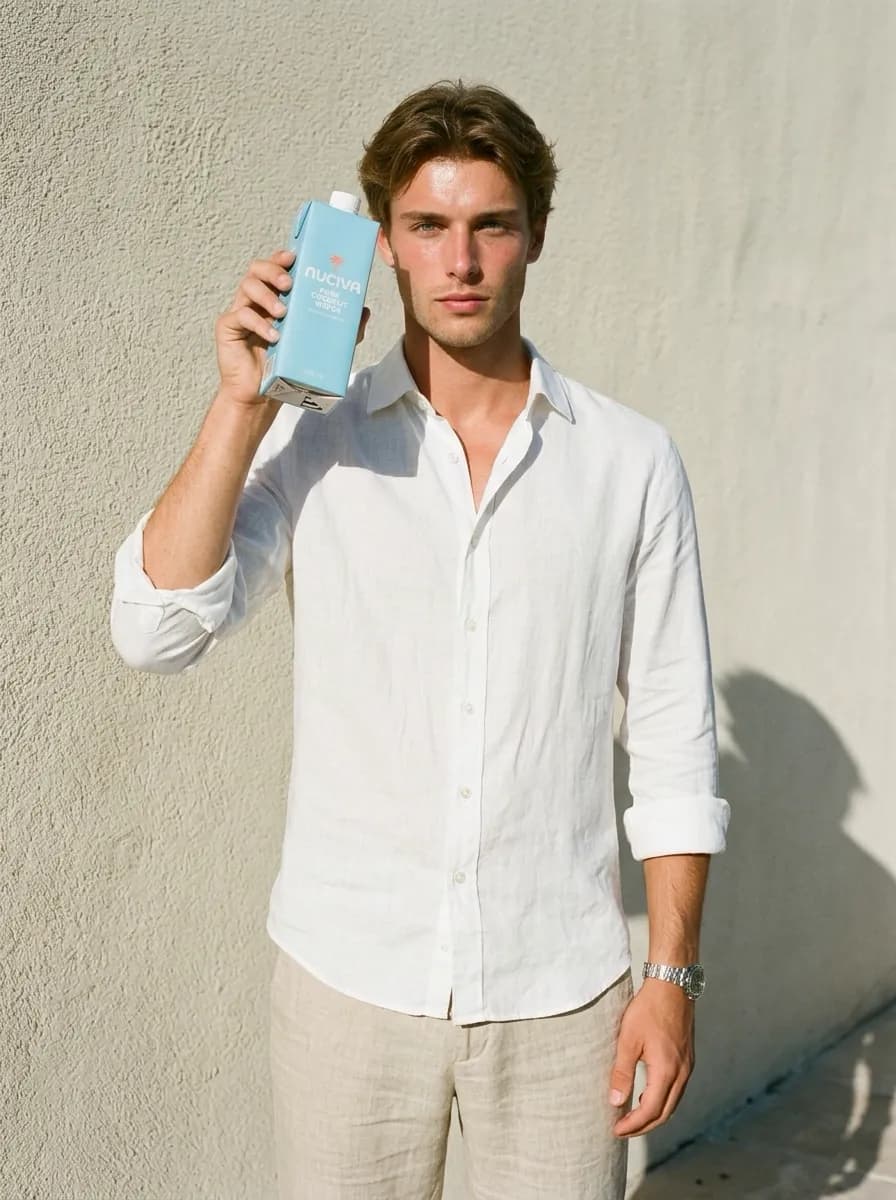
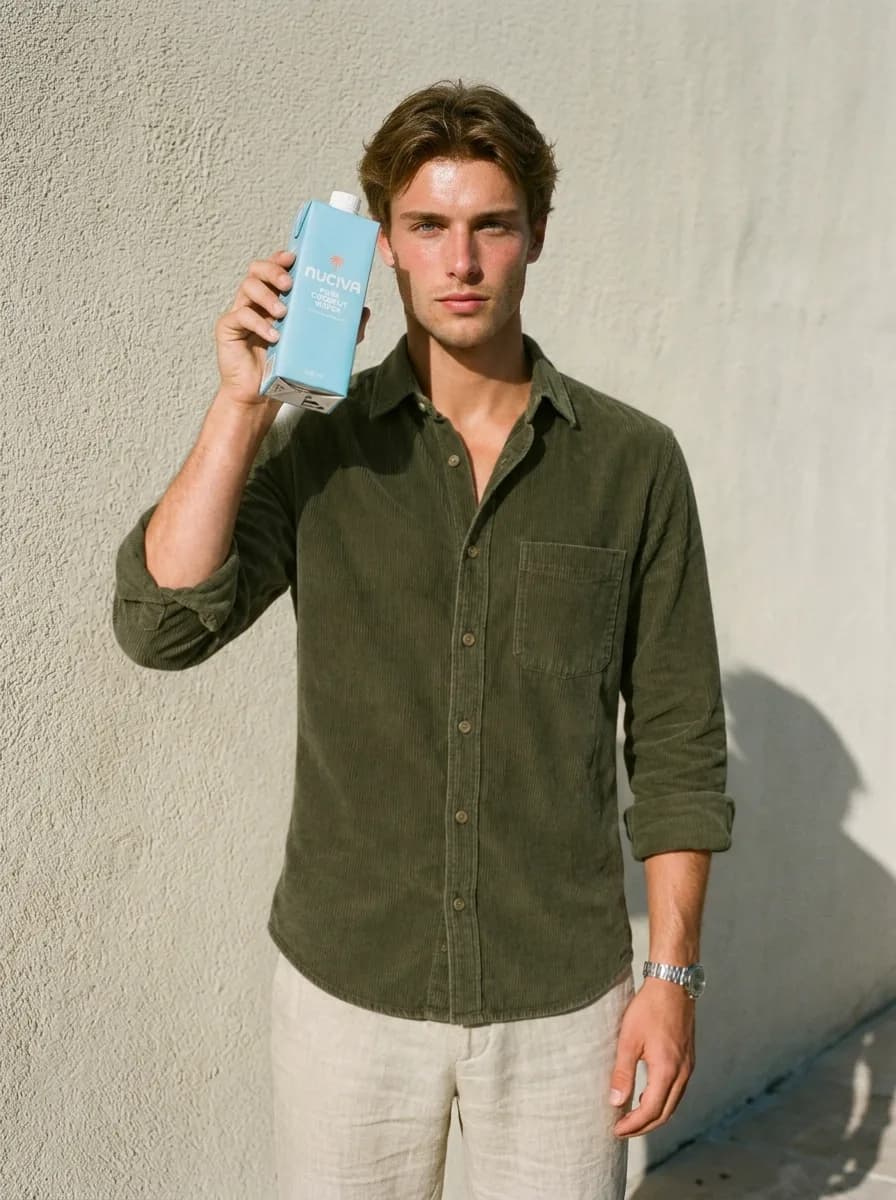
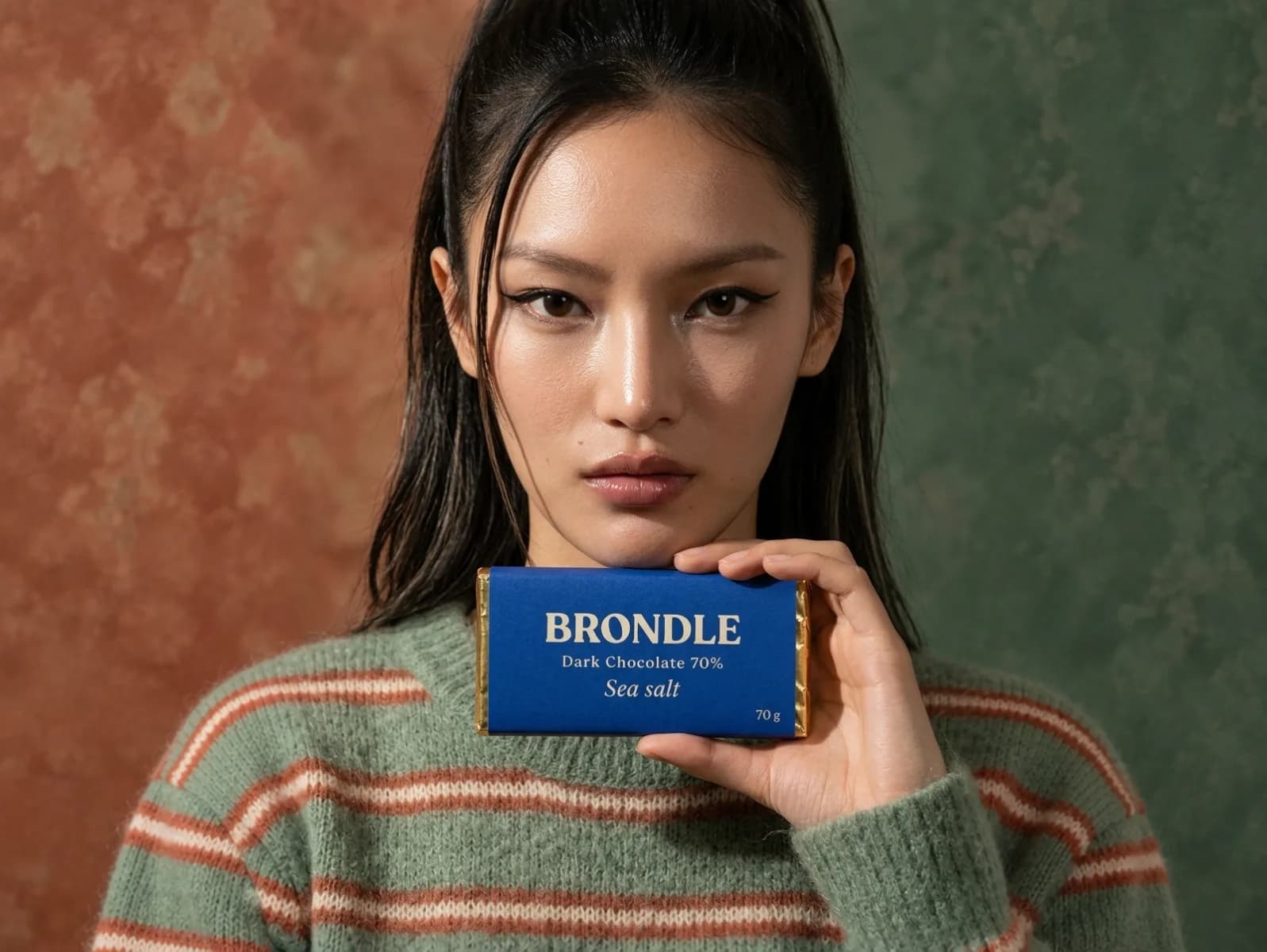
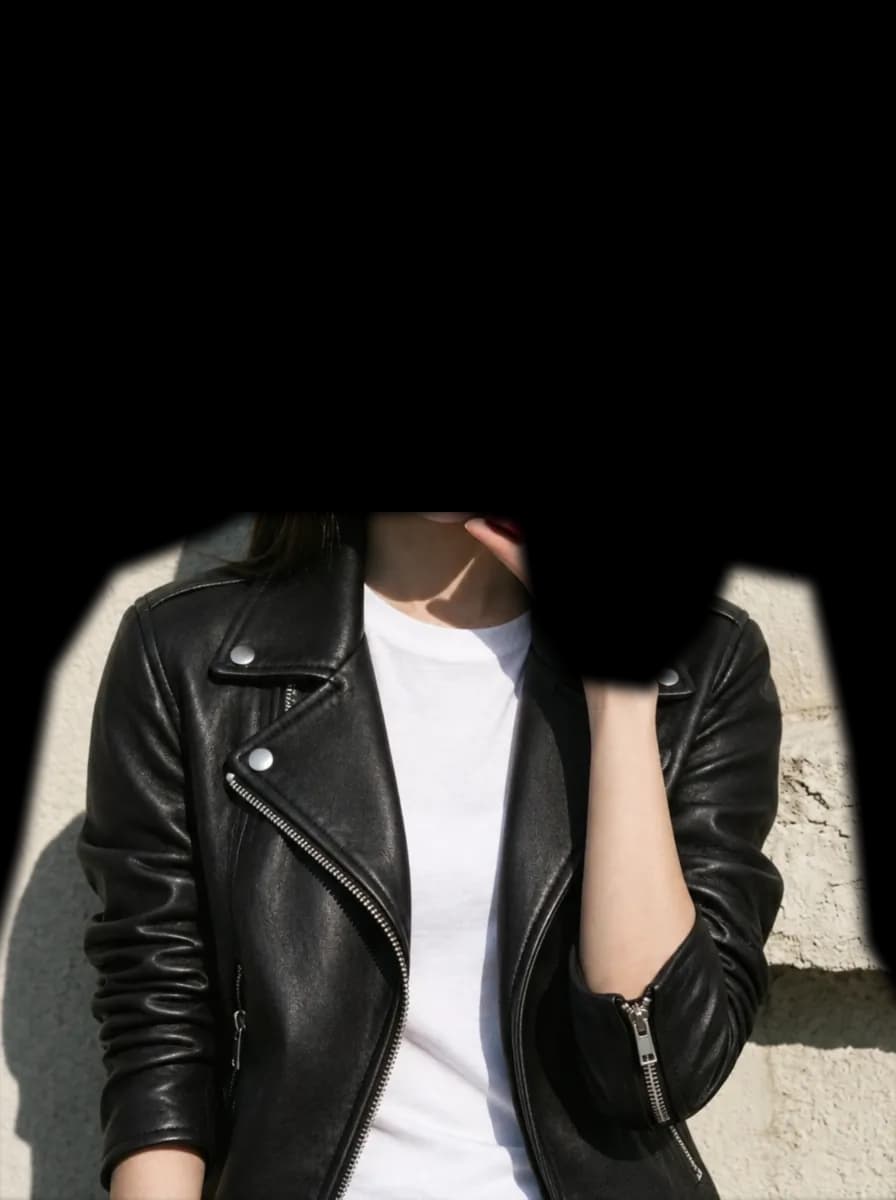
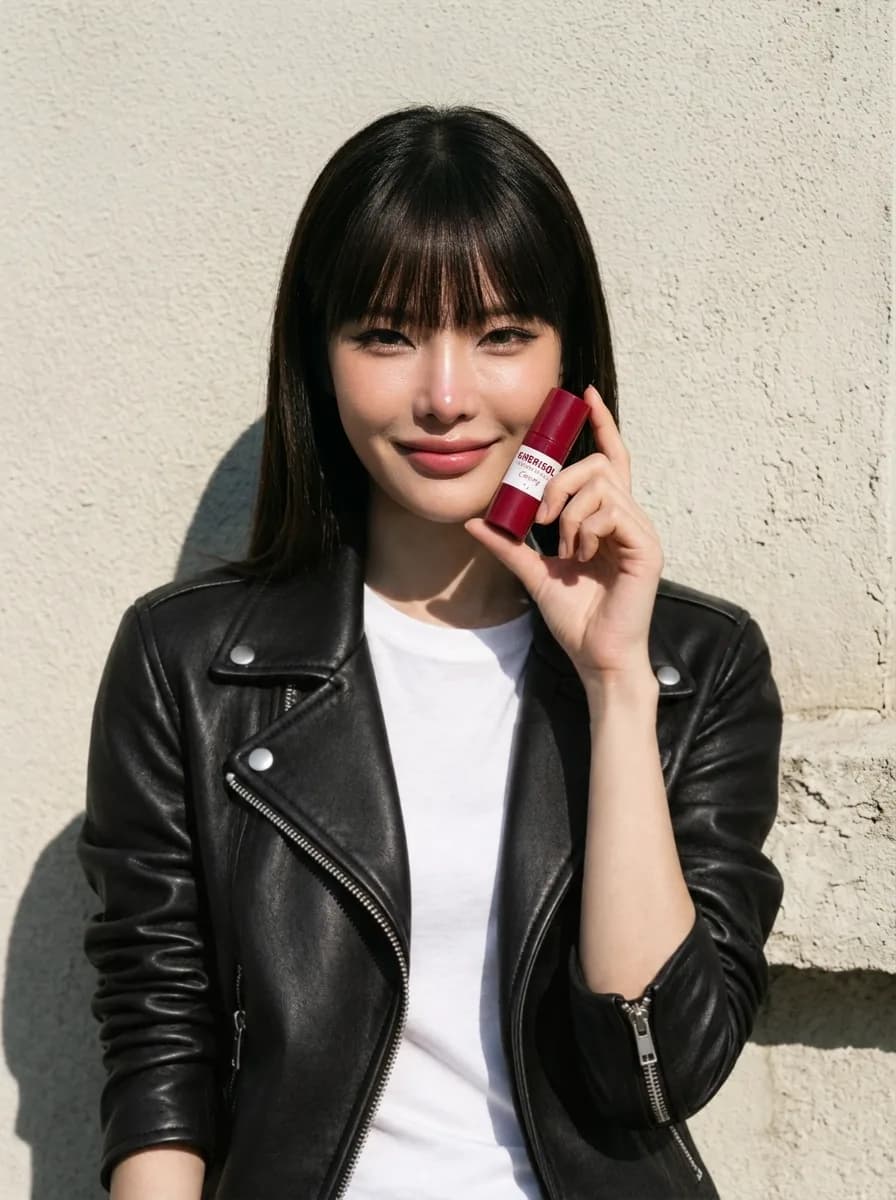
Replace only the white linen shirt with an olive green corduroy overshirt: same fit, same collar, sleeves rolled to the same length, worn untucked over the same beige linen trousers.
Edit a selected area of a photo with AI
Drag a rectangle with Regional edit or draw freehand with Lasso edit, then describe the change. Pixels outside the selection stay exactly as they were.
Expand an image beyond its borders
Pick a frame and drag it. Cropping inside the image is free. Extending past the edges is an AI outpaint, and the Generate button shows its credit cost before you run it.
Remove the background from any image
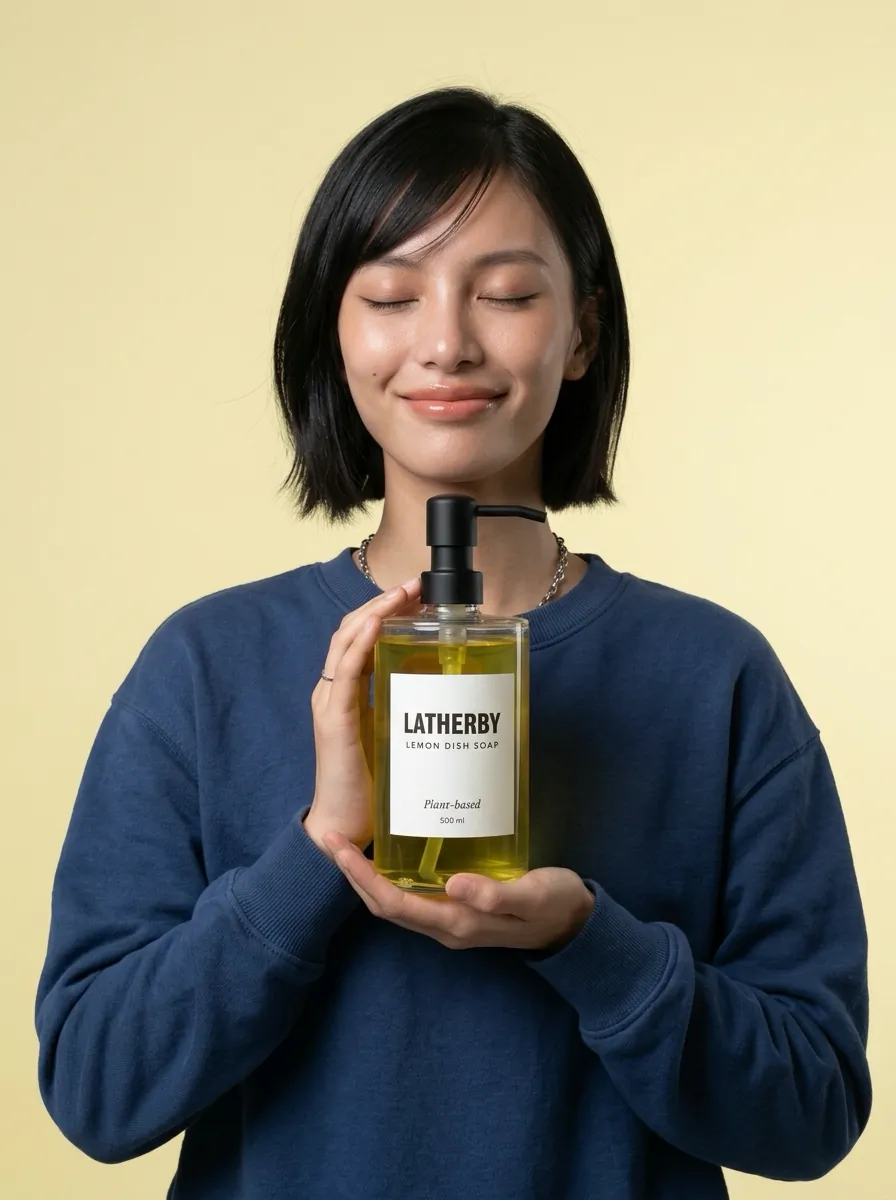
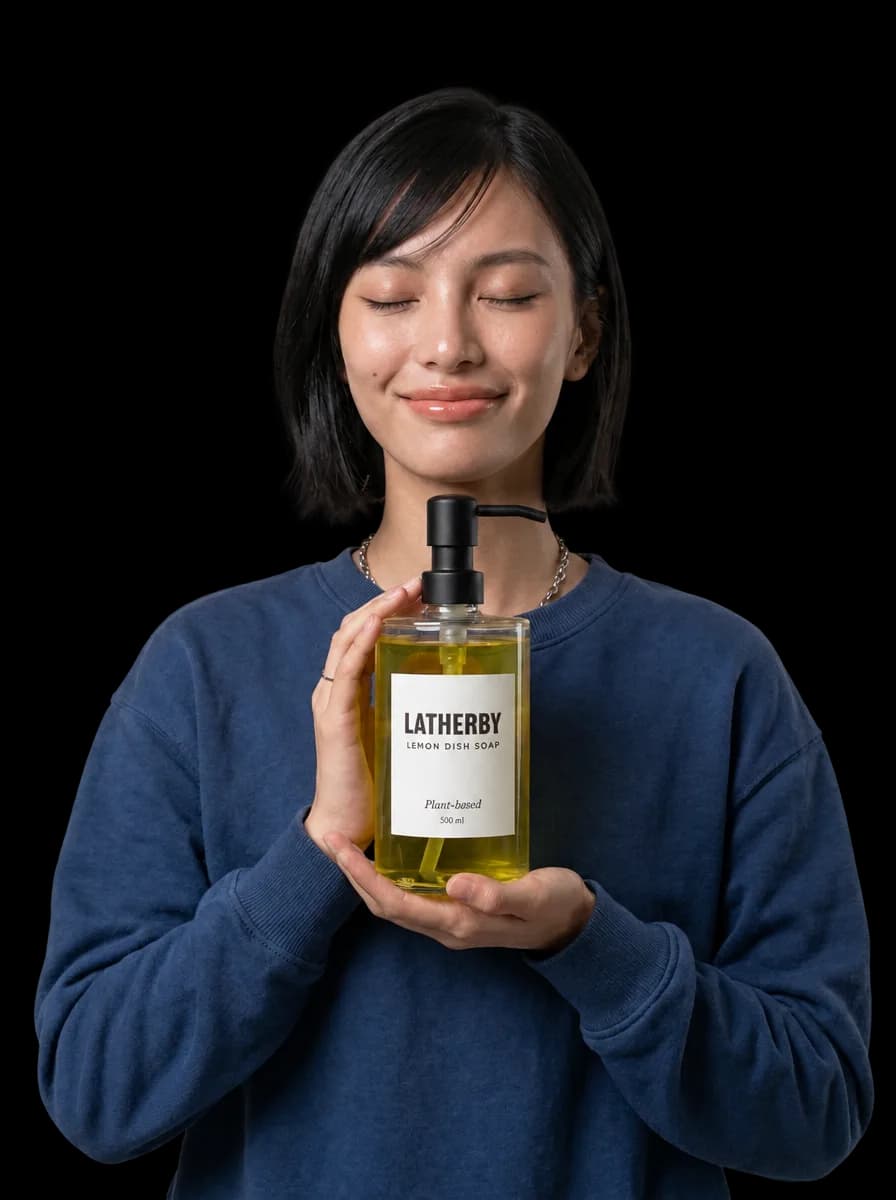
Cut the subject out of the whole image or a single layer, then keep editing or download it.
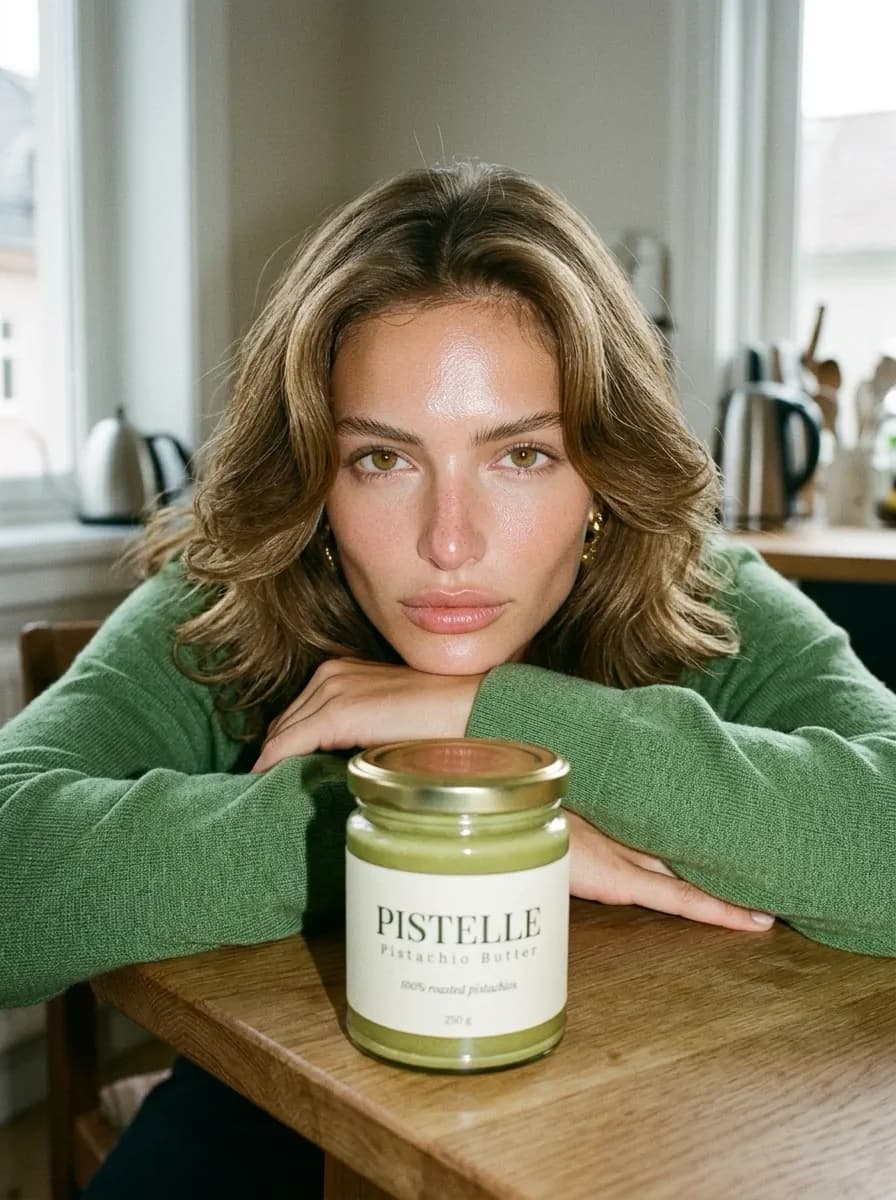
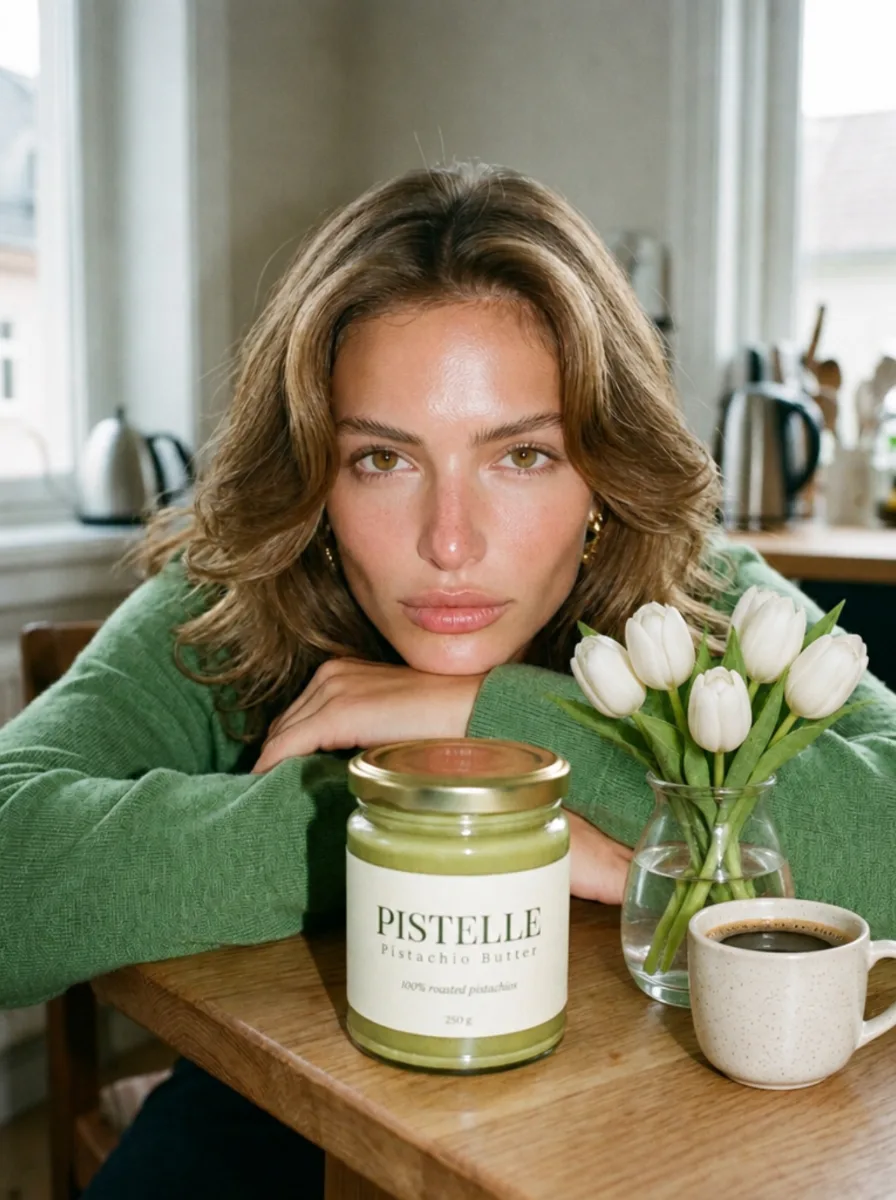
Add a small glass vase of fresh white tulips and a ceramic cup of black coffee on the wooden table to the right of the jar.
Prompt the whole image, or add a reference
Describe a change for the whole image without selecting anything first. Attach a reference image to steer the result.
Work in layers and masks
- Upload an image layer or add a new drawing layer
- Lock, hide, rename and duplicate any layer
- Set opacity and reorder the stack
- Mask a layer with a hide or reveal brush, with size, soft and feather controls
- Draw with Pen, erase with Eraser, or add line, arrow, rectangle and circle shapes
How to edit part of an image
Pick an image
Choose one of your Flashloop images. The editor opens it on a canvas with its tools beside it.
Select the part to change
Drag a rectangle or draw a lasso around the area. To change the canvas instead, use Expand and Crop.
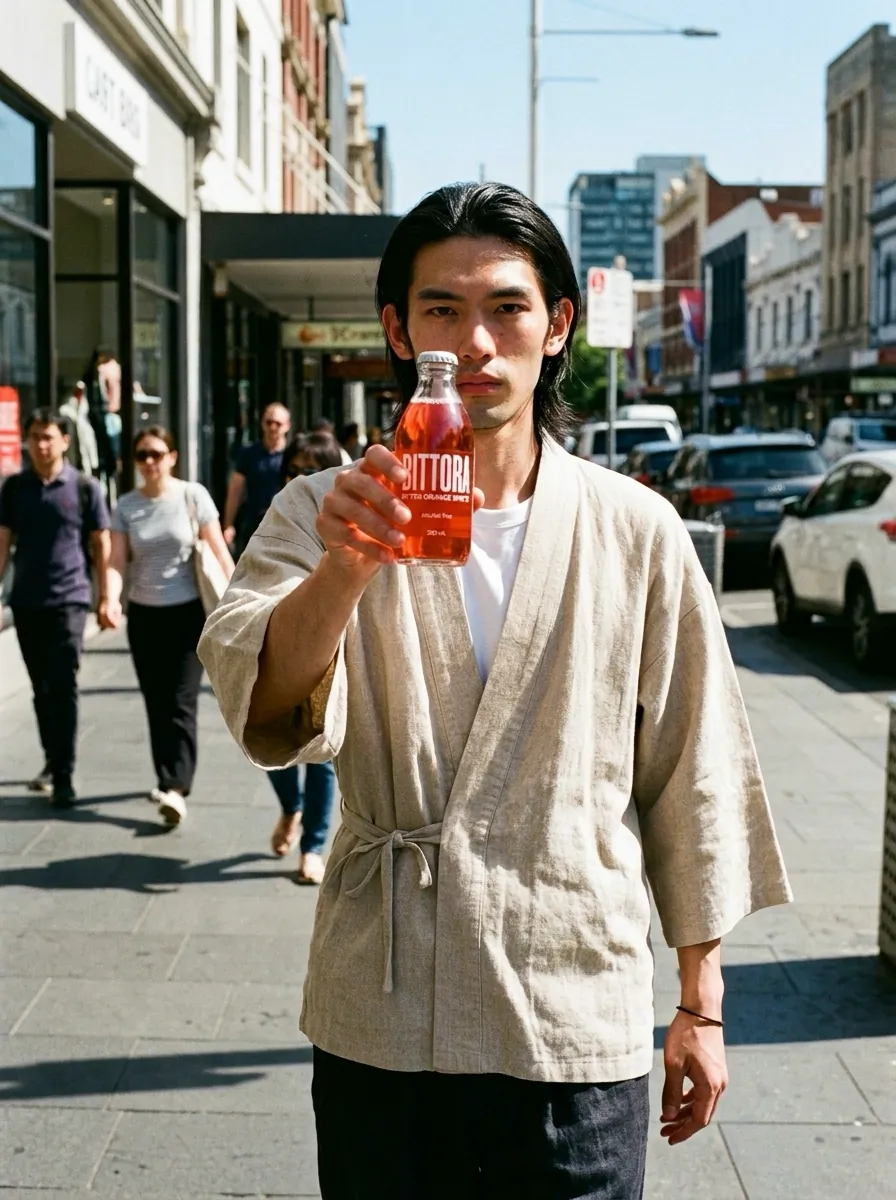
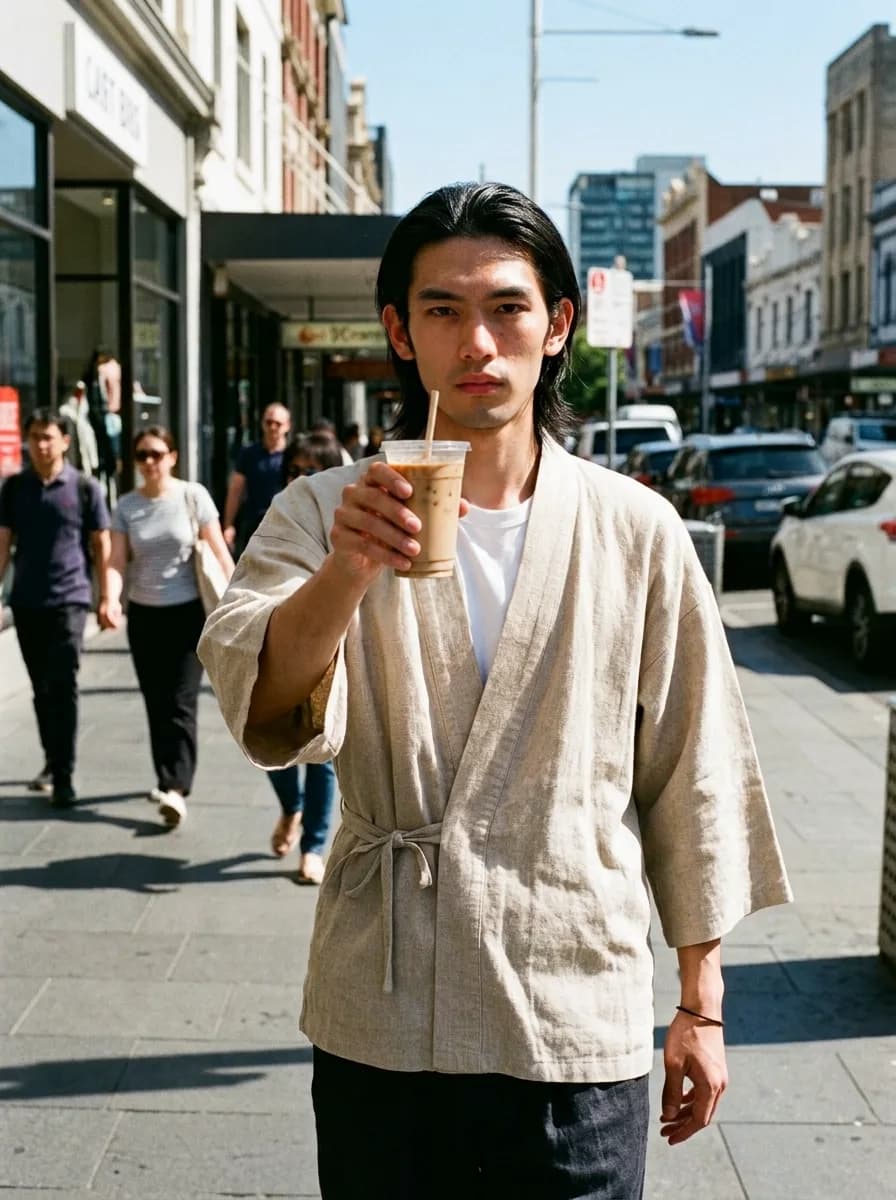
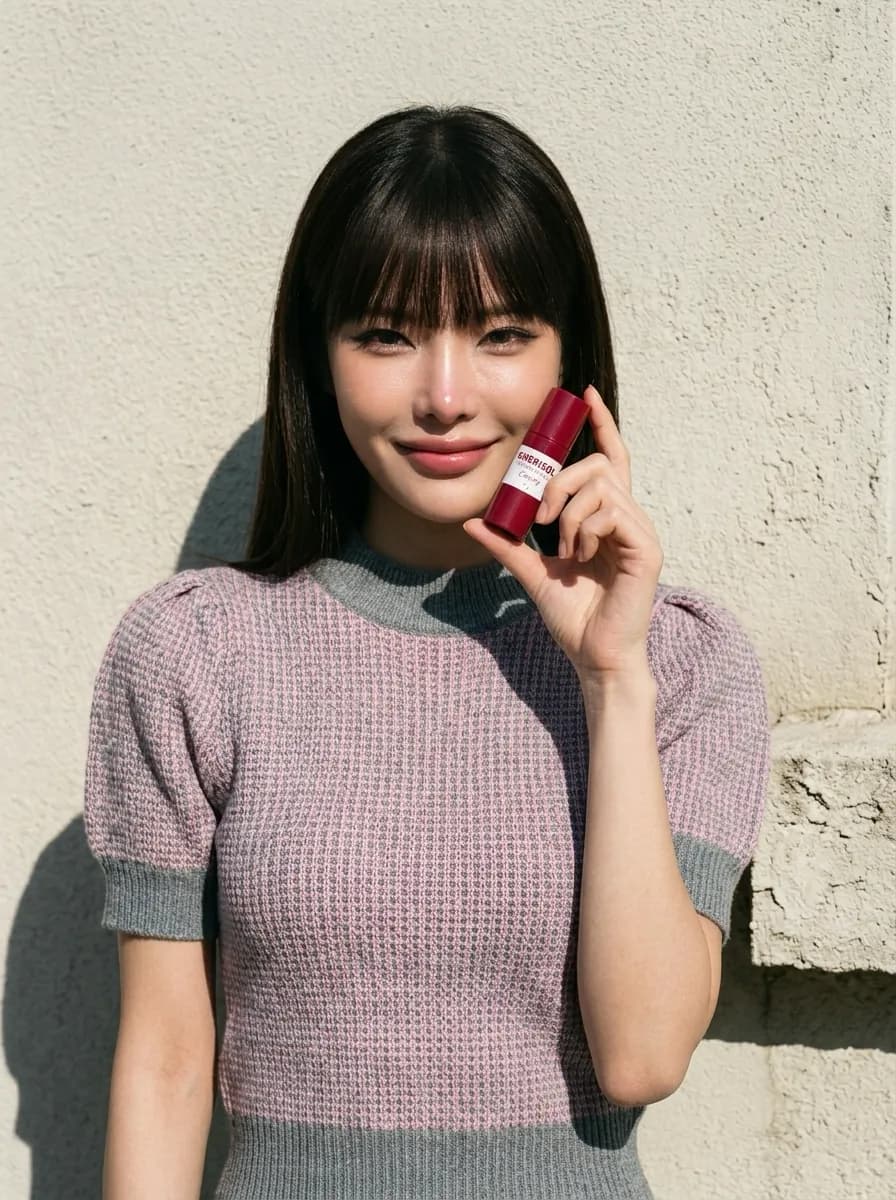
Replace the bottle with an iced latte in a clear plastic takeaway cup with a flat lid and a paper straw. The same hand holds it naturally, fingers wrapped around the cup.
GPT Image 2.5Describe the change and generate
Write what the selection should become. The Generate button shows its credit cost before you run it.
Questions about the image editor
Does the rest of the image change when I edit one area?
No. With Regional edit or Lasso edit, the pixels outside your selection stay exactly as they were.
Which selection tools can I use?
Regional edit selects a rectangle and Lasso edit selects a freehand shape. You can also describe an edit for the whole image with no selection, and add a reference image from an upload or your assets.
Can I expand an image to 16:9?
Yes. Expand and Crop offers Free, 1:1, 16:9, 9:16, 4:3 and 3:4 frames. Extending past the edges is an AI outpaint.
Is cropping free?
Cropping inside the image is free. Extending past the edges is an AI outpaint and costs credits. Each Generate button shows its credit cost before you run it.
Can I remove the background from an image?
Yes. Remove background works on the selected layer or on the whole image.
Which AI model does the image editor use?
Edits run on GPT Image 2.5.
What can I download?
You can download your layers as a .zip, the original image, or the edited image as a .png.
Can I keep editing later?
Yes. Projects autosave, and when you are signed in your projects are listed at the top of this page so you can reopen them.
Can I send the result back to the image generator?
Yes. Use as reference sends your result to the image generator. Upscale hands the image off to the upscaler.